Connect Your Email with IMAP/SMTP
Written By Dearflow Team
Last updated About 1 year ago
Dearflow can literally connect with any email provider in the world—as long as it speaks IMAP/SMTP. This guide walks you through setting it up step by step so you can get rolling in minutes.
What you need before starting
Your email address and password (or app-specific password if required).
IMAP and SMTP enabled for your account.
Server names (hosts), ports, and security types (SSL/TLS). Don’t worry—we’ll fill these in for most major providers.
Quick notes for popular providers
iCloud → Needs an App Password.
Yahoo / AOL → Usually App Passwords if MFA is on.
Proton Mail → Requires Proton Mail Bridge to get local IMAP/SMTP credentials.
Step 1 Pick your provider
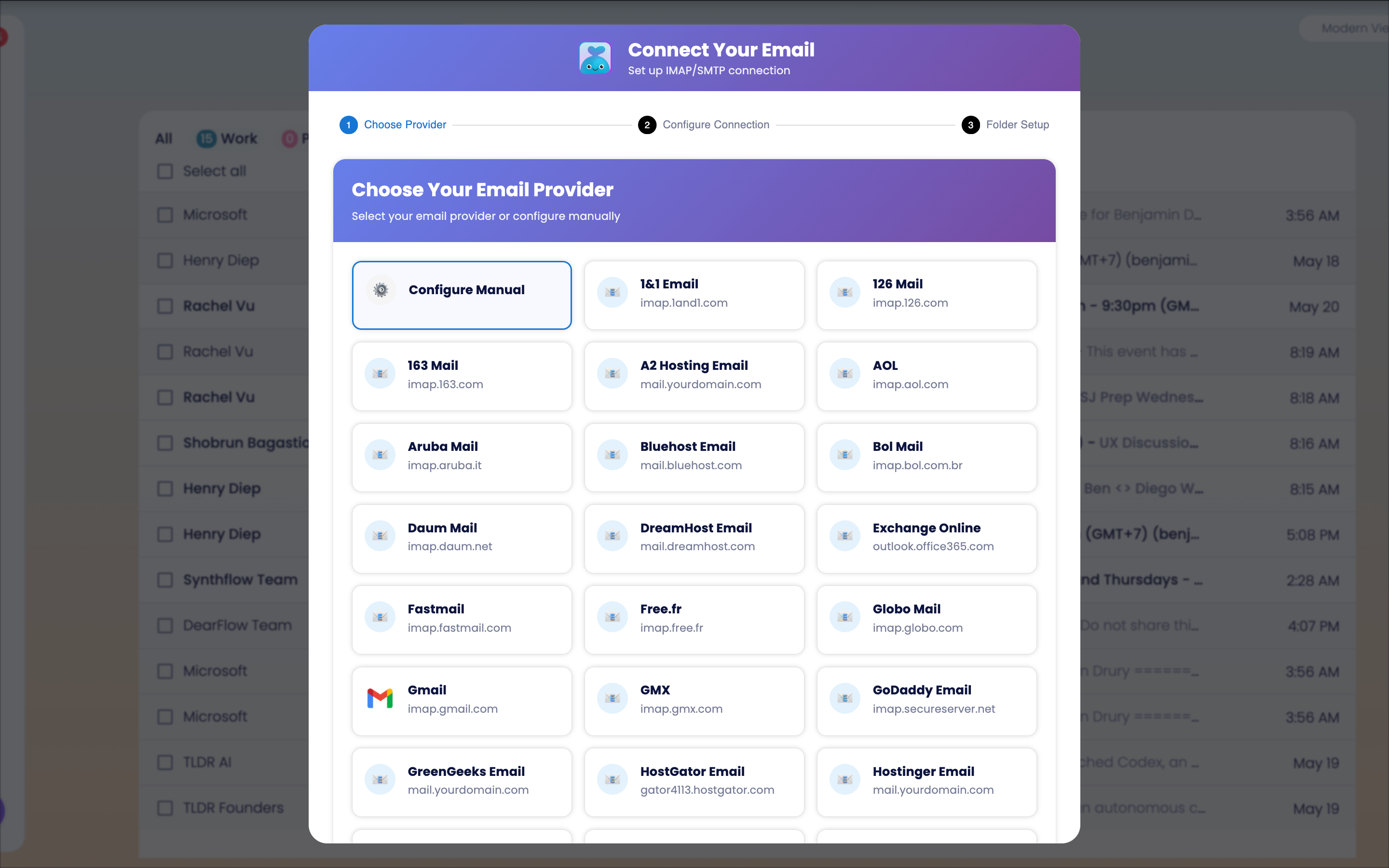
When the Connect Your Email window pops up:
Click your provider’s tile (e.g., Gmail, Exchange Online, Fastmail).
Or hit Configure Manual if your provider isn’t listed.
Step 2 Enter your connection details
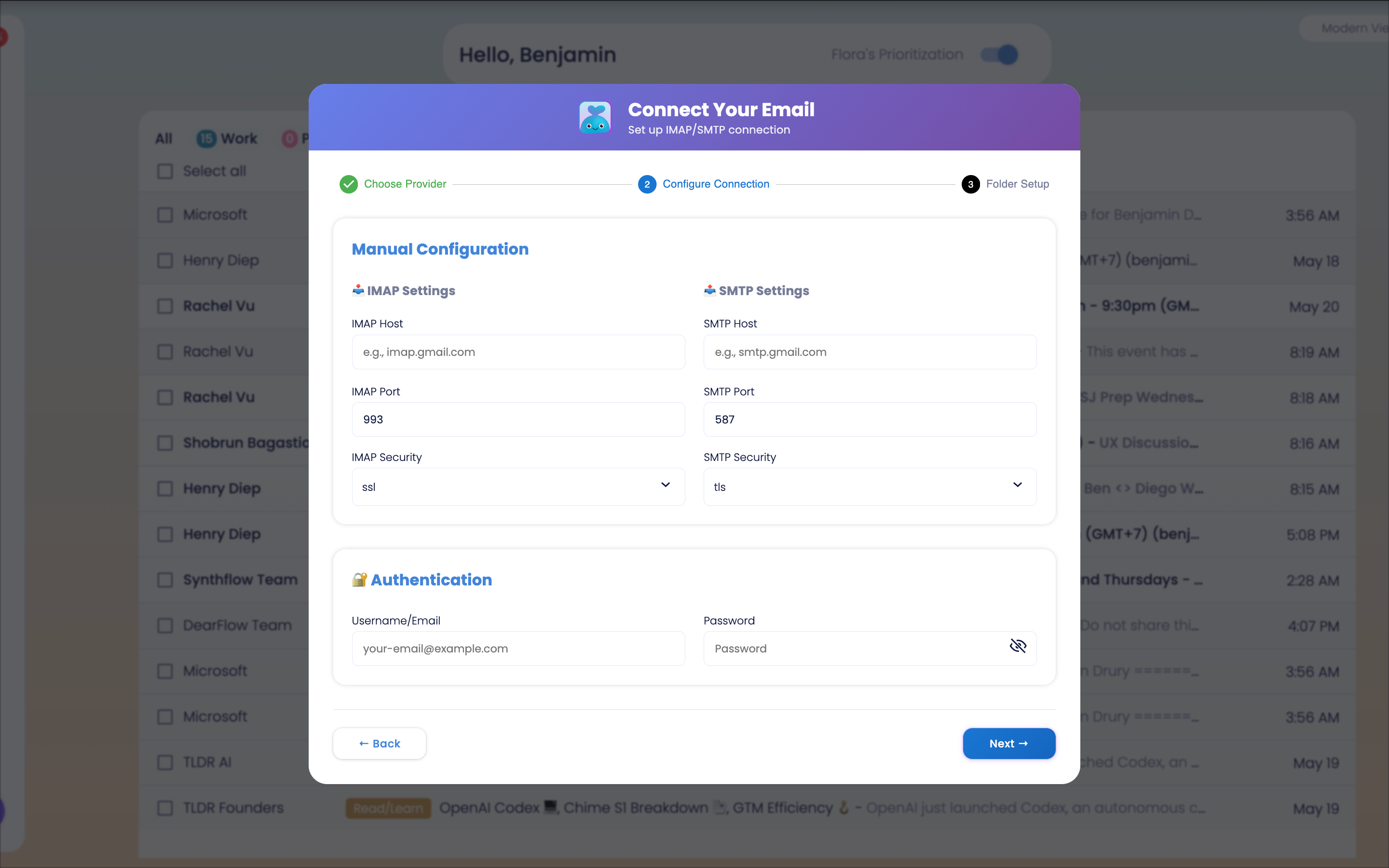
If you picked a known provider, we’ll prefill the technical bits. Manual setup? Just type them in:
Incoming (IMAP)
IMAP Host: e.g. imap.gmail.com
Port: 993 (SSL) or 143 (STARTTLS)
Security: SSL or STARTTLS
Outgoing (SMTP)
SMTP Host: e.g. smtp.gmail.com
Port: 587 (STARTTLS) or 465 (SSL)
Security: TLS/STARTTLS recommended
Login
Username: usually your full email address
Password: your mailbox password (or App Password)
Handy reference
Step 3 — Folder mapping
Once your account connects, you’ll tell Dearflow which folders to use:
Inbox → where your new mail lands.
Sent → where we save sent items.
Drafts → for in-progress replies.
Archive → the “done but keep it” folder.
Spam/Junk (optional) → only if you want Dearflow to check it.
Match them up with your provider’s folder names and hit Next.
Troubleshooting quick fixes
Login fails → Double-check username. Try an App Password if MFA is enabled.
Can’t connect → Make sure IMAP is enabled in your webmail settings.
Can’t send → Use SMTP port 587 with STARTTLS/TLS. Avoid port 25.
Security warning → Use the official hostnames. If it’s your own server, ensure it has a valid SSL certificate.
Provider blocked sign-in → Approve the new app/device in webmail, then retry.
Proton Mail → Confirm Proton Bridge is running with the right ports.
FAQ
What does Dearflow actually access?
Only the folders you map. IMAP lets us read/organize. SMTP lets us send when you approve.
Can I add more than one account?
Yes—repeat the setup for each one.
Can I change folder mappings later?
Of course. Go into account settings and edit them anytime.
OAuth vs Passwords
This guide covers username+password (and app passwords). If your org enforces OAuth-only, ask your admin or reach out to us for options.
Still stuck?
Email us at support@dearflow.ai with your provider, settings you used, and the error message you saw—we’ll get you sorted fast.